

5.4.3. Python and Jupyter Notebooks#
5.4.3.1. Overview#
In this hands-on session, you will learn the basics of Python programming and how to work effectively in Jupyter Notebooks. Python is the primary scripting language used throughout this course for data analysis, automation, and visualization. Jupyter Notebooks provide an interactive environment that combines code, text, equations, and figures.
This session emphasizes doing: you should type and run each example yourself.
5.4.3.2. Learning Goals#
By the end of this session, you should be able to:
Explain the difference between a script and a Jupyter Notebook
Run Python code cells and edit Markdown cells
Use variables and basic data types
Perform simple numerical calculations
Write and run short Python programs
Save results and interpret output in a notebook
5.4.3.3. 1. What Is a Jupyter Notebook?#
A Jupyter Notebook is a document that contains:
Markdown cells (formatted text, equations, explanations)
Code cells (executable Python code)
Output (text, numbers, plots)
Each cell is one of the above three types. You can select the cell type at the top from a drop down menu. Markdown and code cell types can be executed by either pushing the execute button or hitting shift+return.
Notebooks are widely used in computational chemistry for:
exploratory analysis
prototyping calculations
documenting workflows
sharing reproducible results
Additional tutorials can be found here: Basic and/or Advanced. There are also plenty of other online resources.
5.4.3.3.1. Markdown Cells#
Markdown cells are used for explanations and documentation. They are formatted. You type the formatted text using special commands then then compile/execute that cell by hitting shift+return (or hitting the run button).
You can write equations using LaTeX syntax, for example:
Well-documented notebooks are essential for reproducible computational science.
You can also type code snippets
bash code snippet
5.4.3.4. 2. Running Python Code#
Below is a simple Python example.
Click inside the cell and run it (Shift + Enter).
print("Hello, computational chemistry!")
Hello, computational chemistry!
5.4.3.5. 3. Common Data Types#
Some common Python data types:
int– integersfloat– real numbersstr– textlist– ordered collections
You can check a variable’s type using type().
a = 10
b = 3.14
c = "H2O"
d = [1, 2, 3, 4]

print(type(a), type(b), type(c), type(d))
<class 'int'> <class 'float'> <class 'str'> <class 'list'>
5.4.3.6. 4. Using Python as a Calculator for Chemistry#
Python can easily evaluate mathematical expressions that arise in chemistry and physics.
For example, the energy levels of a particle in a 1D box scale as:
Let’s compute relative energies for \(n = 1 \ldots 5\).
To do this, we will use a coding construct called a for loop.
5.4.3.6.1. for loops#
We start by using a simple for loop to print the integers 0 through 9. In python, the syntax of a for loop is:
forindex variable nameinsome range or list or function:The subsequent lines that are “inside” the for loop must be tabbed in
# we will use index variabe i and function range(10) means 0 through 9
for i in range(10):
    print(i)
0
1
2
3
4
5
6
7
8
9
Loops are often used to compute sums. For example if we want to know \(\sum_{i=0}^{10} i\)
partialSum = 0
for i in range(11):
    partialSum += i
    print(i, partialSum)
print("Final sum is:", partialSum)
0 0
1 1
2 3
3 6
4 10
5 15
6 21
7 28
8 36
9 45
10 55
Final sum is: 55
Now back to our particle in a box example. Let’s compute relative energies for \(n = 1 \ldots 5\).
energies = []
for n in range(1, 6):
    energies.append(n**2)

print(energies)
[1, 4, 9, 16, 25]
5.4.3.7. 5. Plotting using Python and matplotlib#
It is common to want to plot data or results in a jupyter notebook using python. matplotlib is a python library used for making plots. It is not native to python and thus we must tell our python kernel to import it.
# import the matplotlib library
import matplotlib.pyplot as plt
---------------------------------------------------------------------------
ModuleNotFoundError                       Traceback (most recent call last)
Cell In[7], line 2
      1 # import the matplotlib library
----> 2 import matplotlib.pyplot as plt

ModuleNotFoundError: No module named 'matplotlib'
Once the above code snippet has been executed, you can plot the energies we calculated above.
# plot energies vs n
plt.plot(energies,'o')
plt.show();
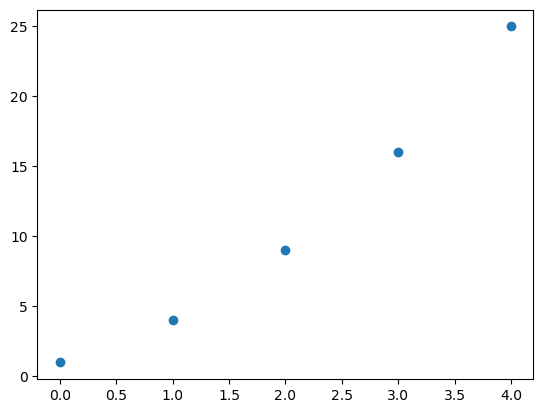
Notice that the axes are not labeled which is not good practice for plotting. We will need a few more lines of matplotlib code to label the axes.
# plot energies vs n with labeled axes
plt.plot(energies,'o')
plt.xlabel("n",fontsize=16)
plt.ylabel(r'E $ / \frac{h^2}{8ml^2}$', fontsize=16)
plt.show();
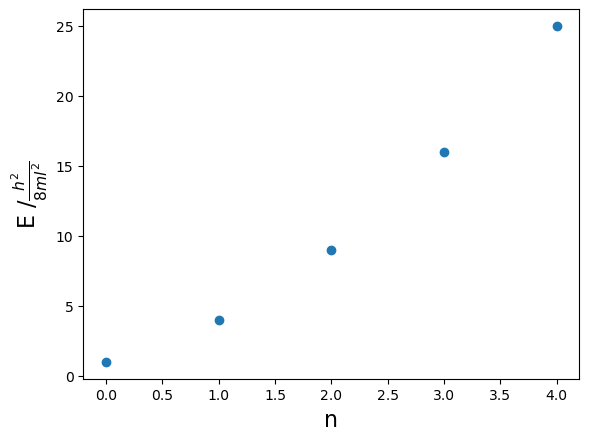
More on plotting can be found here: Plotting with matplotlib.
5.4.3.8. 6. Saving and Reproducibility#
A Jupyter Notebook stores:
code
output
explanations
This makes it possible for someone else (or you, months later) to rerun the analysis and understand what was done.
In computational chemistry, your notebook is part of your scientific record.
5.4.4. End-of-Class Assignment (Due at End of Session)#
Complete the following tasks in this notebook.
5.4.4.1. Task A: Variables and Math#
Define a variable
xequal to 4.Compute the quantity \( \sqrt{x^2 + 1} \).
Print the result with a descriptive message.
Write your code in the cell below.
# YOUR CODE HERE
5.4.4.2. Task B: Simple Loop#
Using a for loop, create a list containing the values:
Print the resulting list.
Write your code in the cell below.
# YOUR CODE HERE
5.4.4.3. Task C: Make a plot#
Using matplotlib, make a plot of \(n^3\) vs \(n\) from Task B (\(n = 0, 1, 2, 3, 4, 5, 6\)). Make sure to label your axes.
# YOUR MATPLOTLIB CODE HERE
5.4.4.4. Task D: Reflection (Markdown)#
In a Markdown cell below, answer the following in 2–3 sentences:
What is one advantage of using a Jupyter Notebook instead of a plain Python script?
Why is documentation especially important in computational chemistry?