

5.4.9. Week 6 Hands-On: WebMO (Gaussian on TIGER)#
Course: Computational Chemistry
Activity type: Hands-on tutorial + short assignment
5.4.9.1. TIGER / WebMO Access Information#
You will be using WebMO with Gaussian running on the TIGER HPC system.
5.4.9.1.1. Access Setup#
Your TIGER access has been created.
You have been added to TIGER’s Gaussian access group.
5.4.9.1.2. WebMO URLs#
WebMO Pro version:
https://tiger.hpc.okstate.edu/~webmoproWebMO Basic version:
https://tiger.hpc.okstate.edu/~webmo
For this course, use WebMO Pro unless instructed otherwise.
5.4.9.1.3. Login Instructions#
Use your short O-Key username (e.g.,
martmcc).Use your O-Key password.
If you cannot log in:
Confirm you are using your short O-Key username (not your full email).
Confirm VPN access if off campus.
Contact the instructor if access problems persist.
5.4.9.2. Learning Goals#
By the end of this activity you should be able to:
Log into WebMO and navigate the interface.
Build a molecule using the WebMO Builder.
Run a Gaussian geometry optimization.
Run a Gaussian frequency calculation and interpret the results.
Identify whether a structure is a minimum (no imaginary frequencies).
5.4.9.3. 1. Build a Molecule (Example: Ethanol)#
Selet
Create New Jobfrom theNew Jobmenu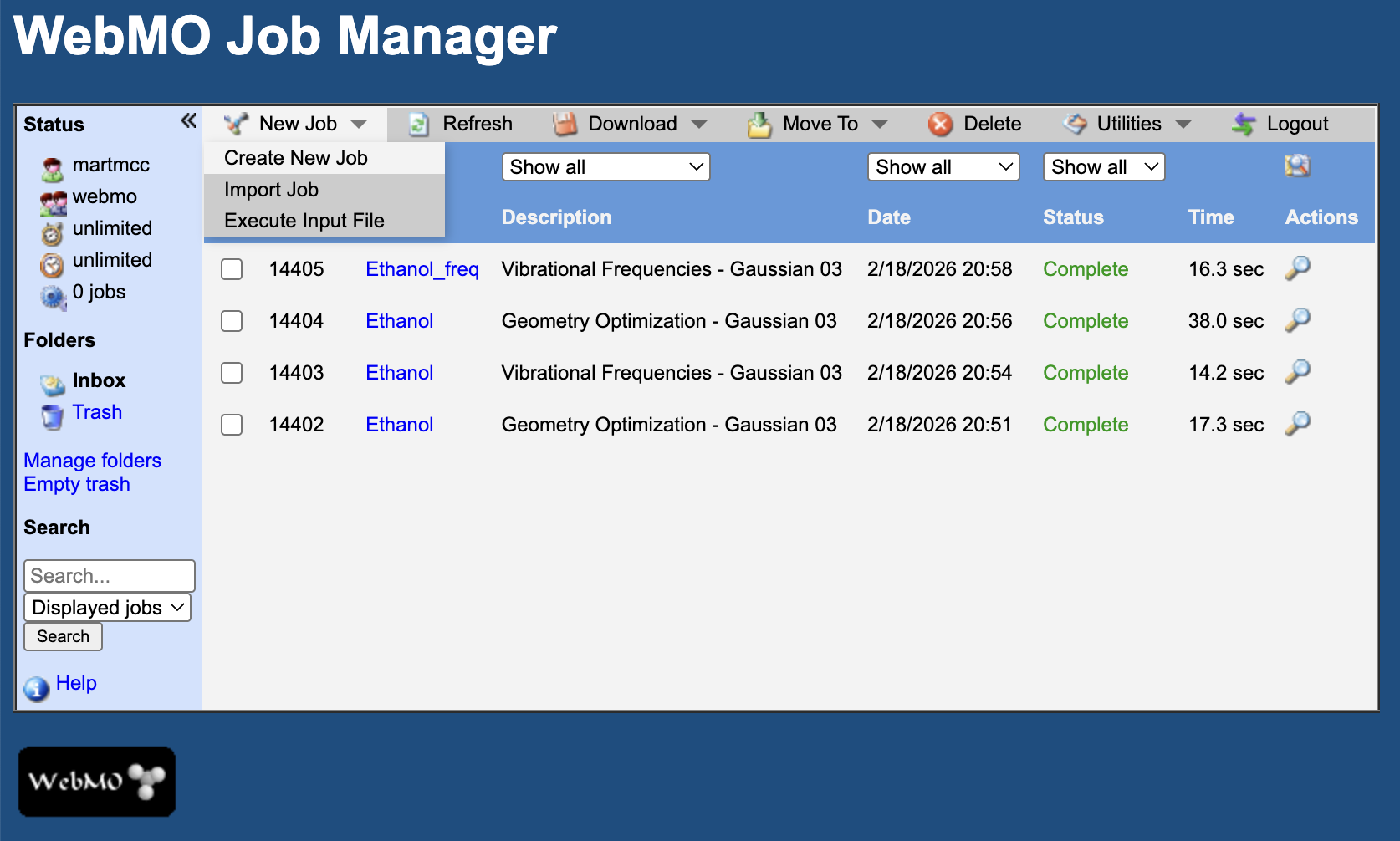
Construct ethanol (CH\(_3\)CH\(_2\)OH) using tools to add and bond carbons and oxygen.
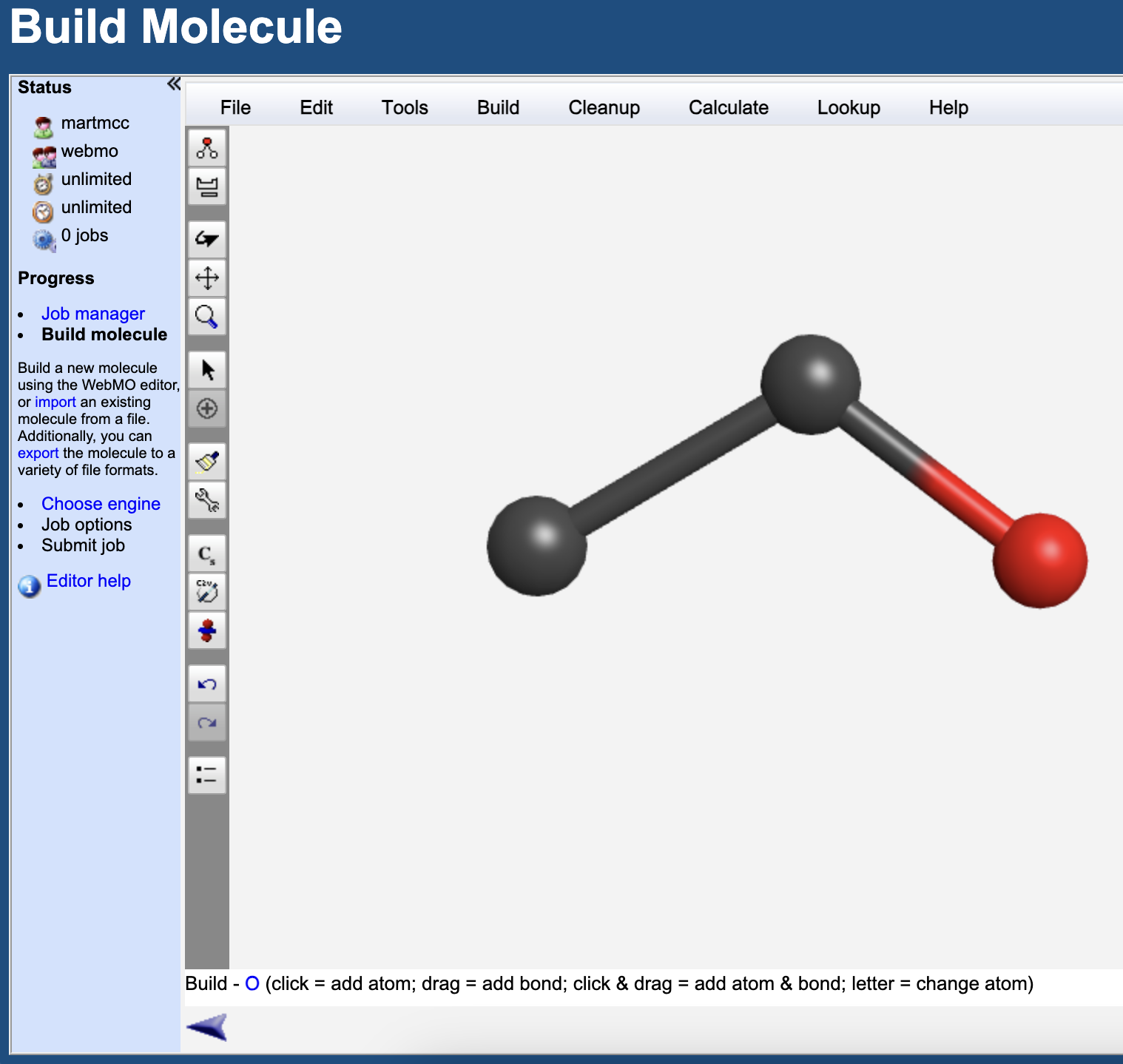
Add hydrogens automatically using the
Add Hydrogensoption fromCleanupmenu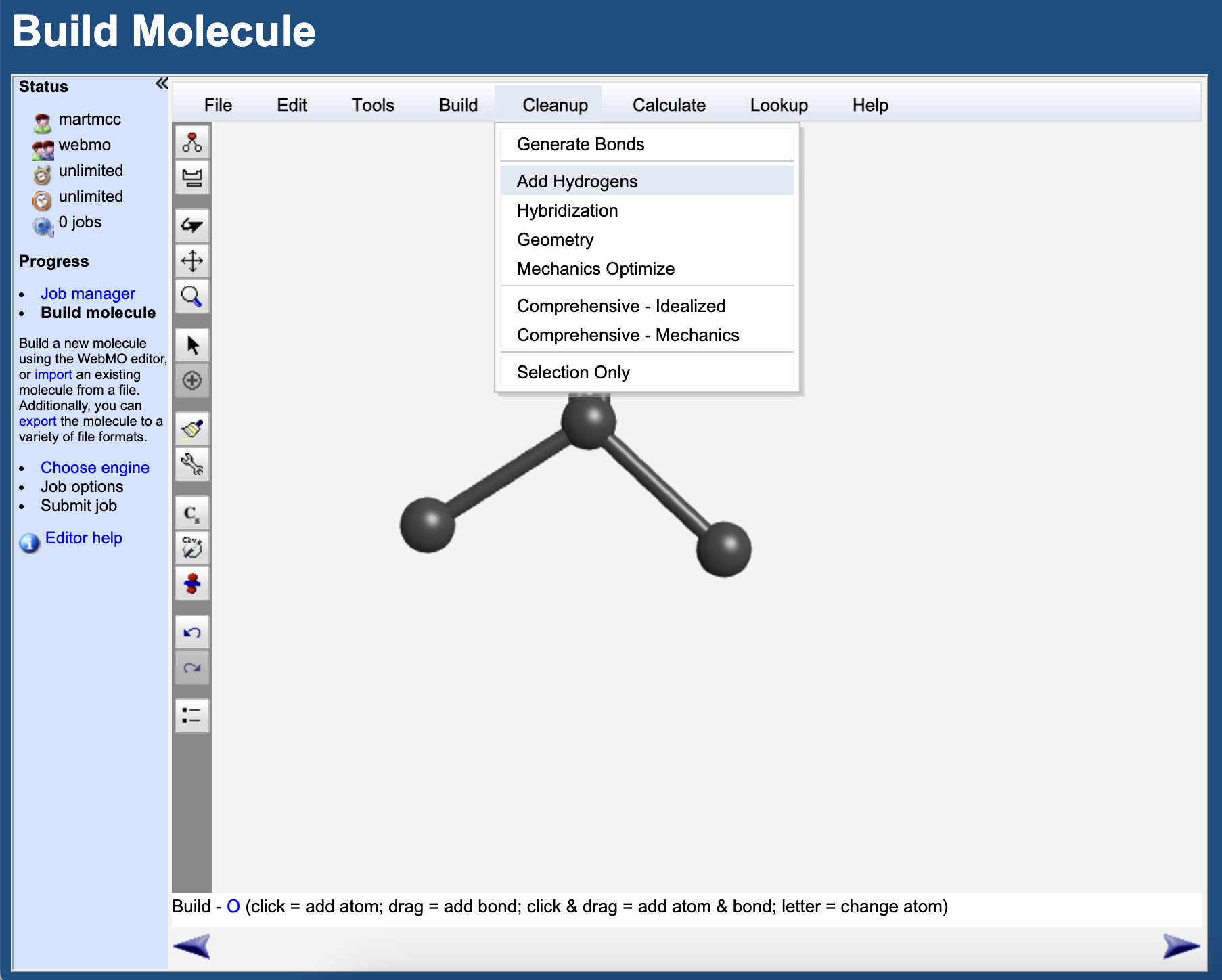
Perform an initial geometry optimization (to refine your handmade positioning) using the
Mechanics Optimizefrom theCleanupmenu.
Set:
Charge = 0
Multiplicity = 1
5.4.9.4. 2. Geometry Optimization (Gaussian)#
Press the right arrow on the bottom right of the molecular building screen to progress to the job options.
Select Gaussian03 as the engine in the next screen.
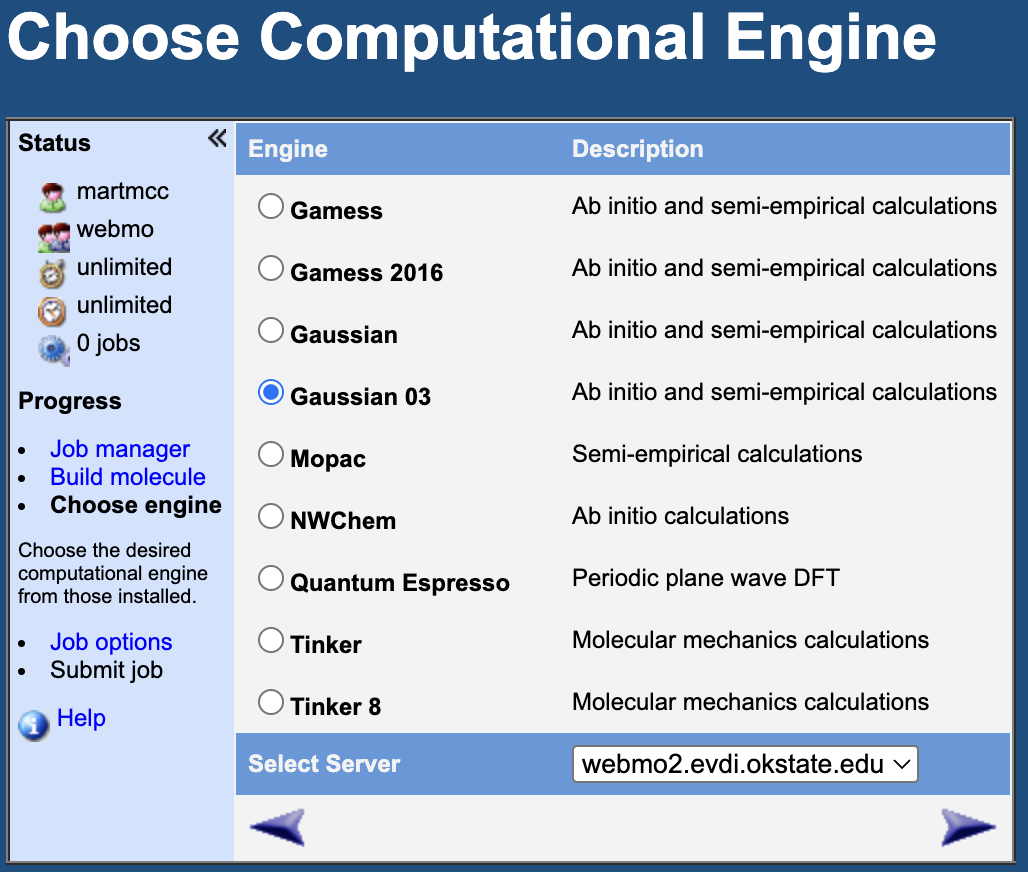
Press the right arrow on the bottom right to advance Configure Job Options. Choose Job Type: Geometry Optimization.
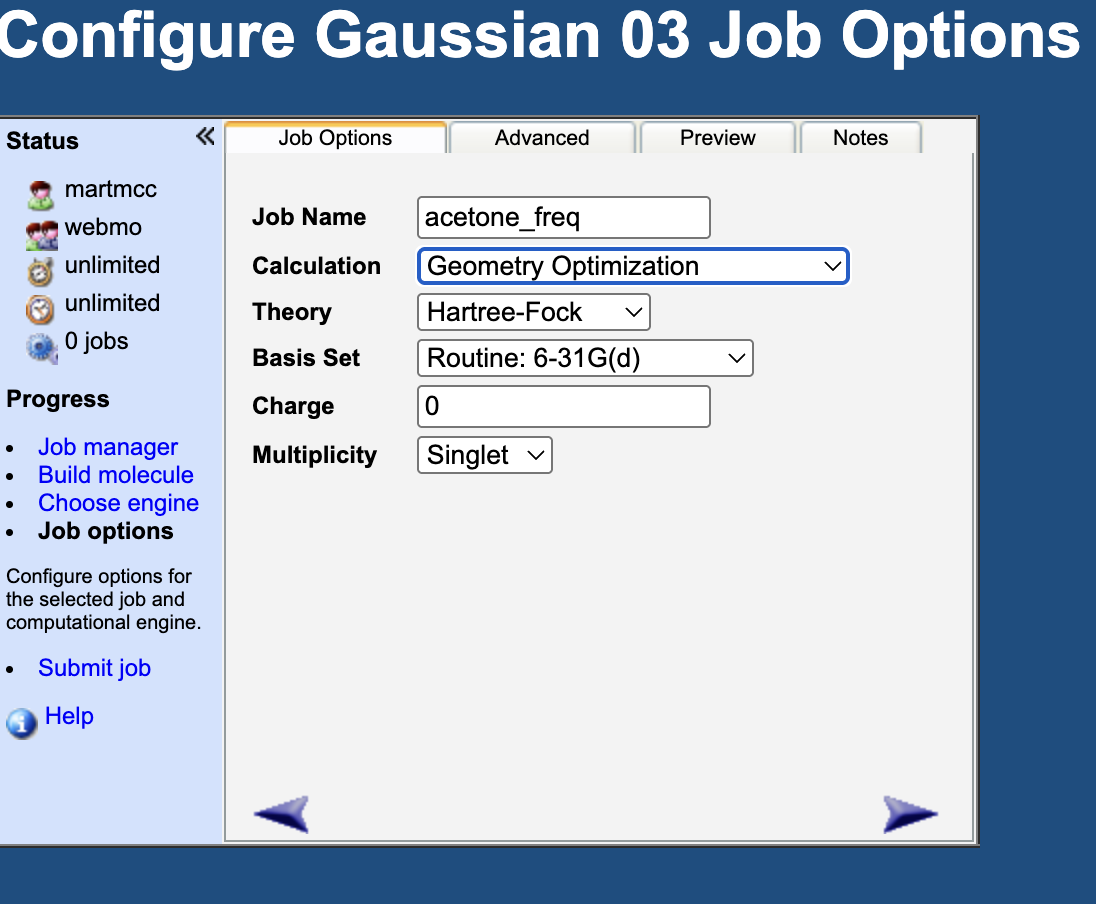
Method: HF (can try others later)
Basis Set: 6-31G(d).
Name your job clearly (e.g., ethanol_opt_HF).
Submit and monitor in Job Manager by hitting the right arrow on the bottom right of your screen.
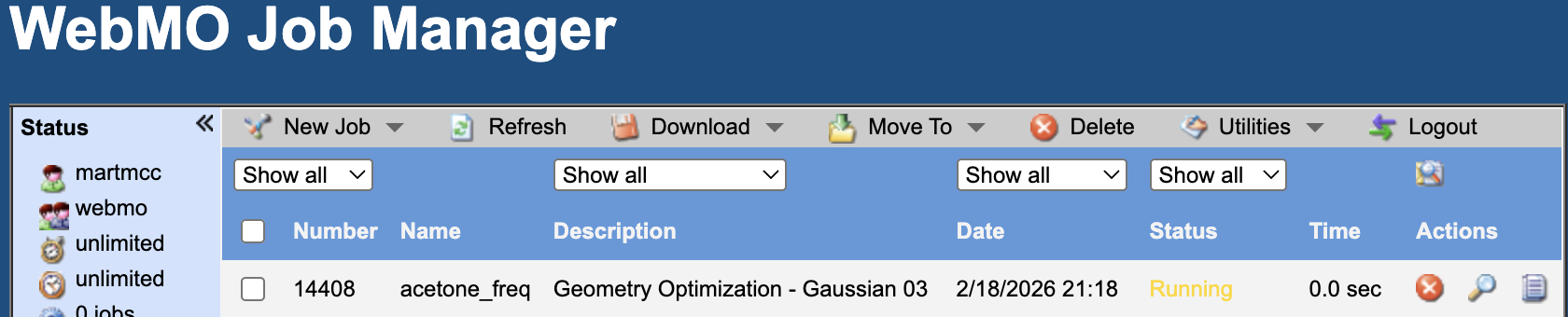
When the job Status reads Complete, hit the little magnifying glass to look at the output information.
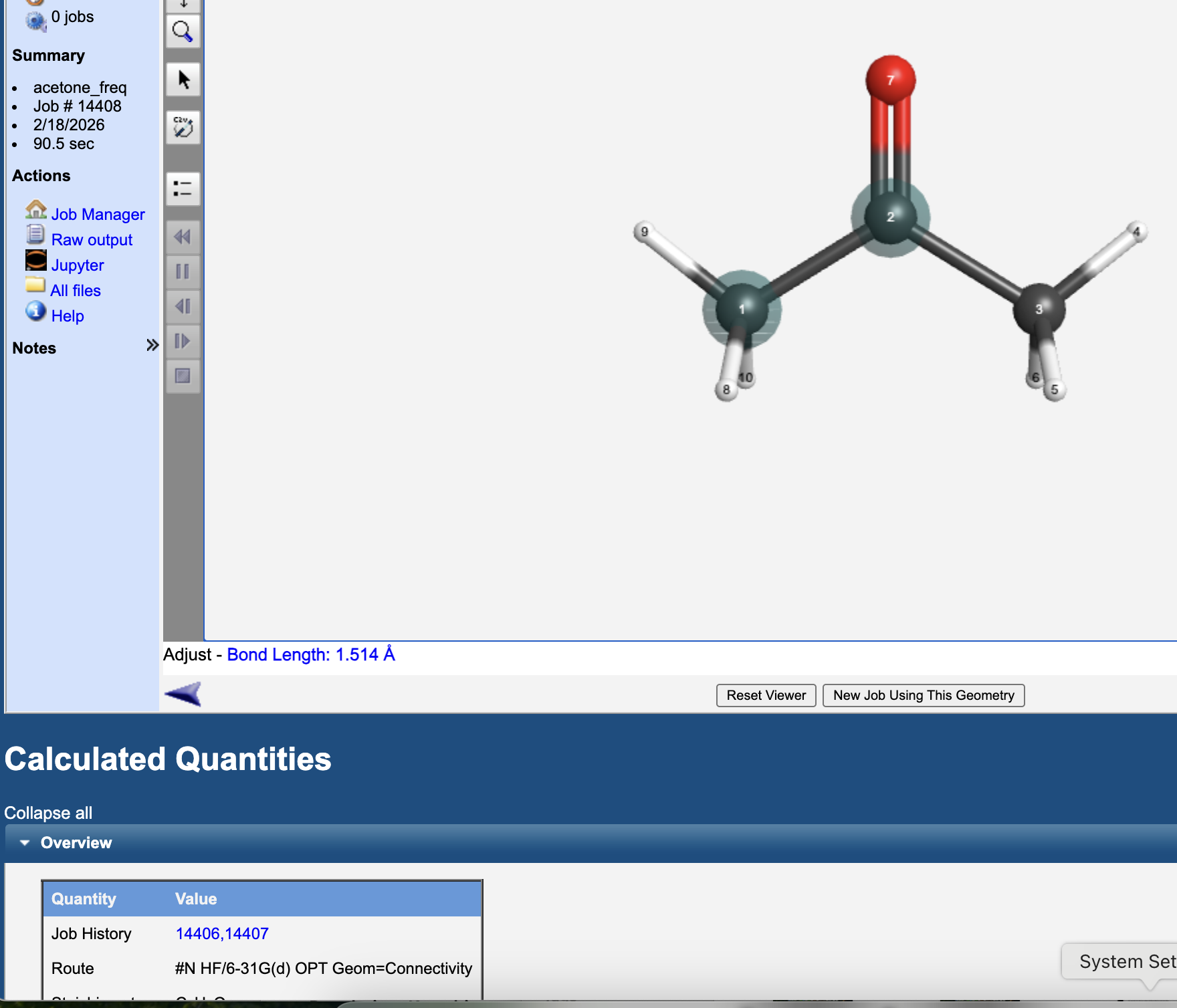 Record:
Final electronic energy (Hartree).
C-C and C-O bond lengths (by highlighting the atoms in the image)
5.4.9.5. 3. Frequency Calculation#
Start a new job from the optimized geometry by clicking the
New Job Using This Geometrybutton at the bottom of the optimized geometry when viewing the output.In the new window, click the right arrow on the bottom right to choose the Computational Engine.
Select
Gaussian03again and click the right arrow on the bottom right to configure your job.In this screen select
Vibrational Frequenciesfrom theCalculationmenu.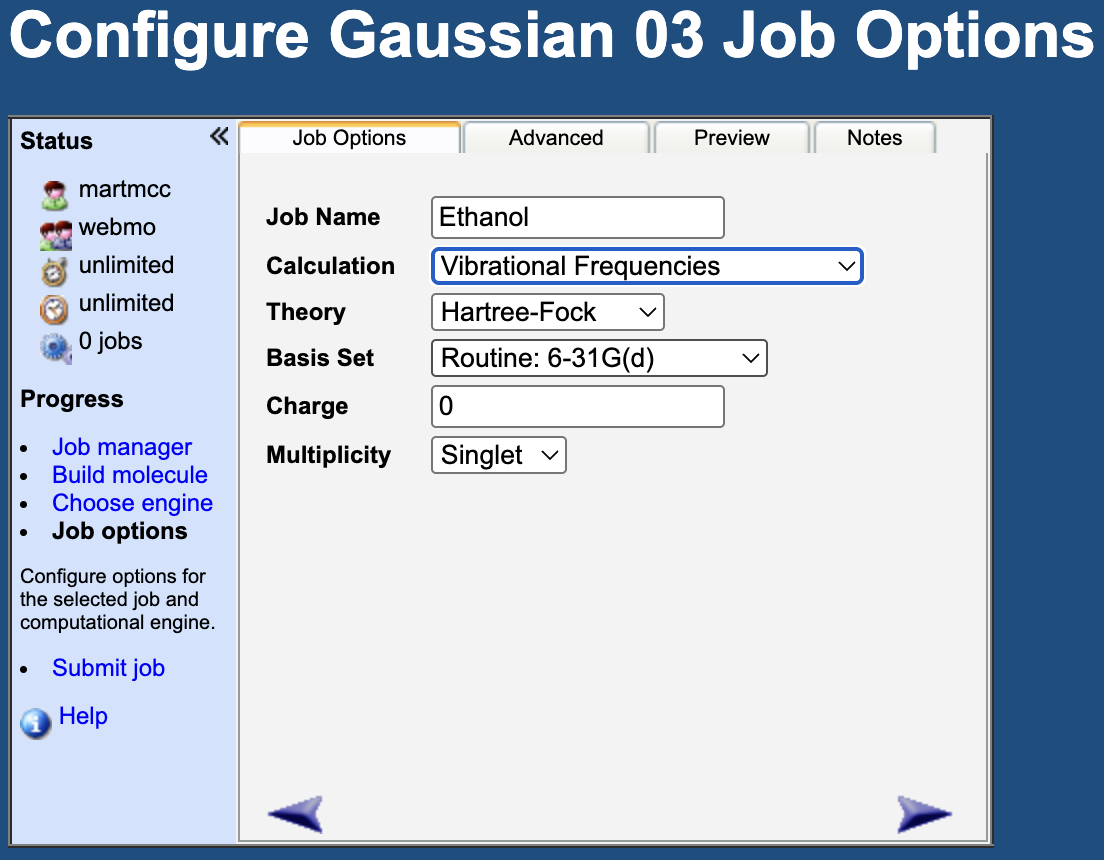
Use the same method and basis set as the geometry optimation (why?).
Submit the job.
Record:
Number of imaginary frequencies.
Lowest three vibrational frequencies.
Does this structure correspond to a minimum? Why?
5.4.10. Assignment (Submit on Canvas)#
Perform a geometry optimization and frequency caculation for acetone.
5.4.10.1. Deliverables#
5.4.10.1.1. A. Setup (2 pts)#
Molecule name + screenshot
Charge and multiplicity
5.4.10.1.2. B. Optimization (4 pts)#
Method and basis set
Final energy
Two geometric parameters
5.4.10.1.3. C. Frequency (3 pts)#
Number of imaginary frequencies
Lowest three frequencies
Statement about minimum
5.4.10.1.4. D. Reflection (1 pt)#
2–3 sentences: What was most confusing about WebMO?